
Thingiverse
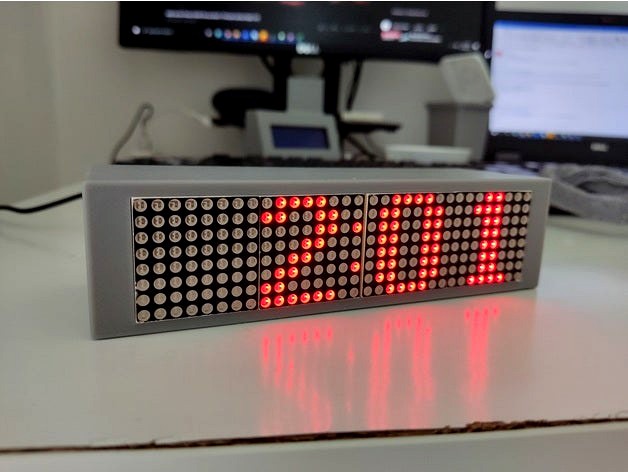
Wifi Clock by Nori0aw
by Thingiverse
Last crawled date: 4 years, 5 months ago
This is a ESP8266 project that is connected to MAX7219 Dot Matrix Module to display the time and date that is fetched from the internet.
Features:
12/24 time format (you can select it when doing the initial setup)
Automatic time setting (the time will be fetched from the internet)
Auto timezone detection based on the IP location.
Current weather display in your city (no setup needed)
Random fun facts, will be shown every 3 minutes.
First time setup:
Get open weather API key from here: https://openweathermap.org/api and place it in the APIKEY section in the code.
When you turn on the clock for the first time, it will show AP mode (access point mode) on the display the first time you turn it on.
Connect to the clock using your phone or tablet by searching for wifi network called "Wifi Clock".
A setup page should open and you should select the wifi notwork that the clock will connect to and enter the password.
choose the time format that you prefer.
Setup is done...
Code: https://github.com/nori0aw/Wifi_Clock
Features:
12/24 time format (you can select it when doing the initial setup)
Automatic time setting (the time will be fetched from the internet)
Auto timezone detection based on the IP location.
Current weather display in your city (no setup needed)
Random fun facts, will be shown every 3 minutes.
First time setup:
Get open weather API key from here: https://openweathermap.org/api and place it in the APIKEY section in the code.
When you turn on the clock for the first time, it will show AP mode (access point mode) on the display the first time you turn it on.
Connect to the clock using your phone or tablet by searching for wifi network called "Wifi Clock".
A setup page should open and you should select the wifi notwork that the clock will connect to and enter the password.
choose the time format that you prefer.
Setup is done...
Code: https://github.com/nori0aw/Wifi_Clock